When you send an order confirmation, Welo receives a hidden copy. If automatic invitations are on and the confirmation passes the checks, Welo schedules a personal invitation for that customer. The default delay is 7 days.
Who can use it. Automatic invitations are being opened account by account. When they're available for yours, Get reviews shows Automatic invitations as the first method. If you don't see it, invite customers with Send invitations from CSV or Share your link. Your account must be live, with an active subscription.
How it works
An example with the default settings:
- On 3 November, Anna orders from your store. Your store sends the order confirmation to
anna@example.com, with your Welo address in BCC. - Welo receives the copy a few seconds later and checks it: the sender is one you authorised, the email is signed for its domain, and Anna is the only customer in the To field.
- Welo schedules an invitation for 10 November, 7 days later. Anna receives it from Welo Badge (noreply@welobadge.com) and can review your company on your Welo Page.
- If you turned the reminder on and Anna hasn't left a review, Anna receives one reminder.
Every confirmation that passes the checks gets the same neutral invitation: Welo never chooses customers by how satisfied they are, and every review is checked before it's published. Each customer is invited at most once every 30 days, whatever the channel.
Set up automatic invitations
Everything happens in Get reviews › Automatic invitations, in three steps on the page. This guide splits the first one in two.
1. Copy your Welo address
Open Get reviews and choose Automatic invitations. In step 1, Copy the address, select Copy address, then Continue once the address is in your order confirmations. Where do I paste it? below it opens the platform instructions of this guide.
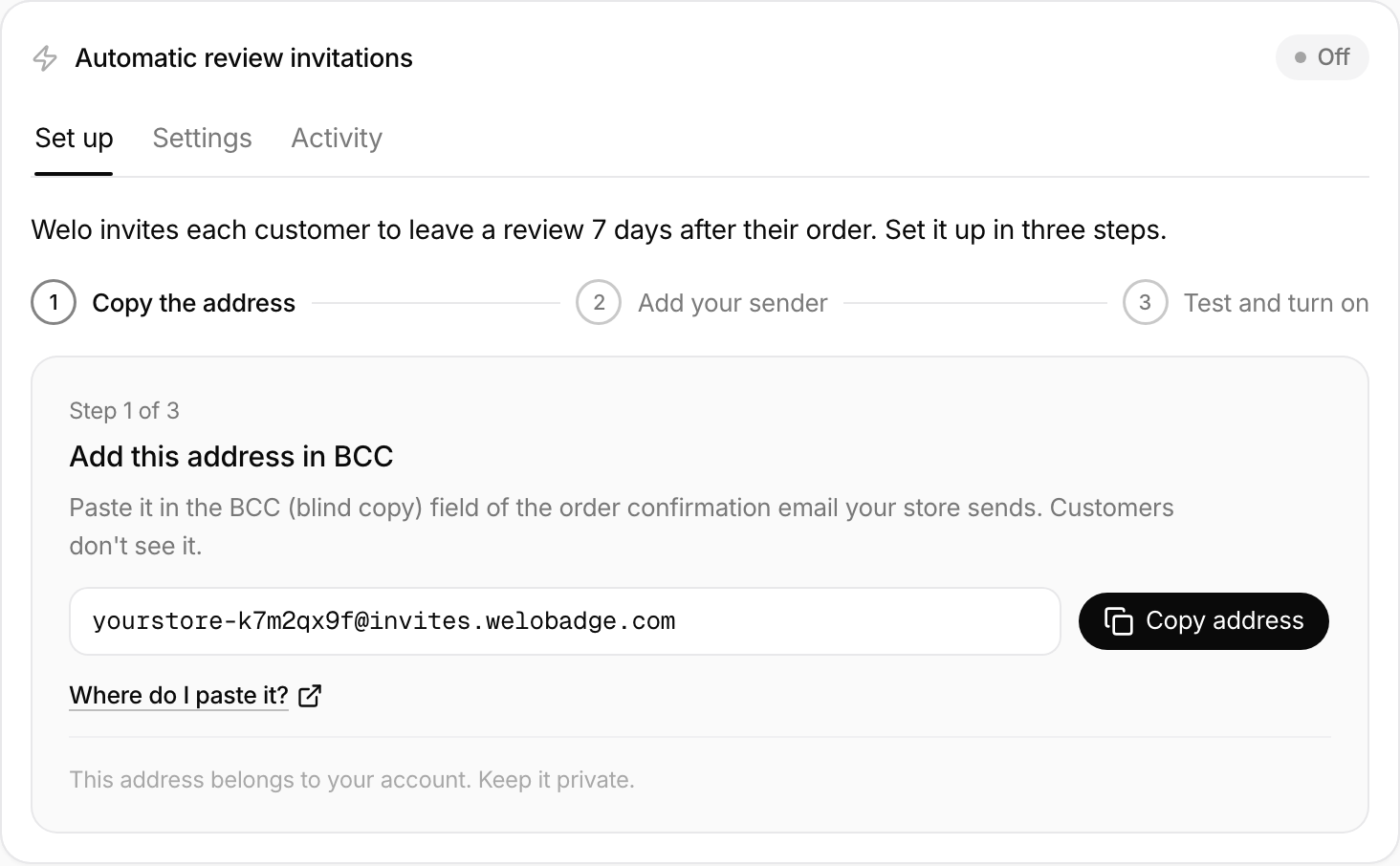
The address looks like yourstore-k7m2qx9f@invites.welobadge.com. This is only an example: every company has its own address. Keep it private, because Welo reads every email sent to it as one of your order confirmations.
2. Add it to your order confirmations
BCC means blind copy: an extra recipient who receives the same email without the customer seeing it. Your customer stays in the To field and your Welo address goes in the BCC field.
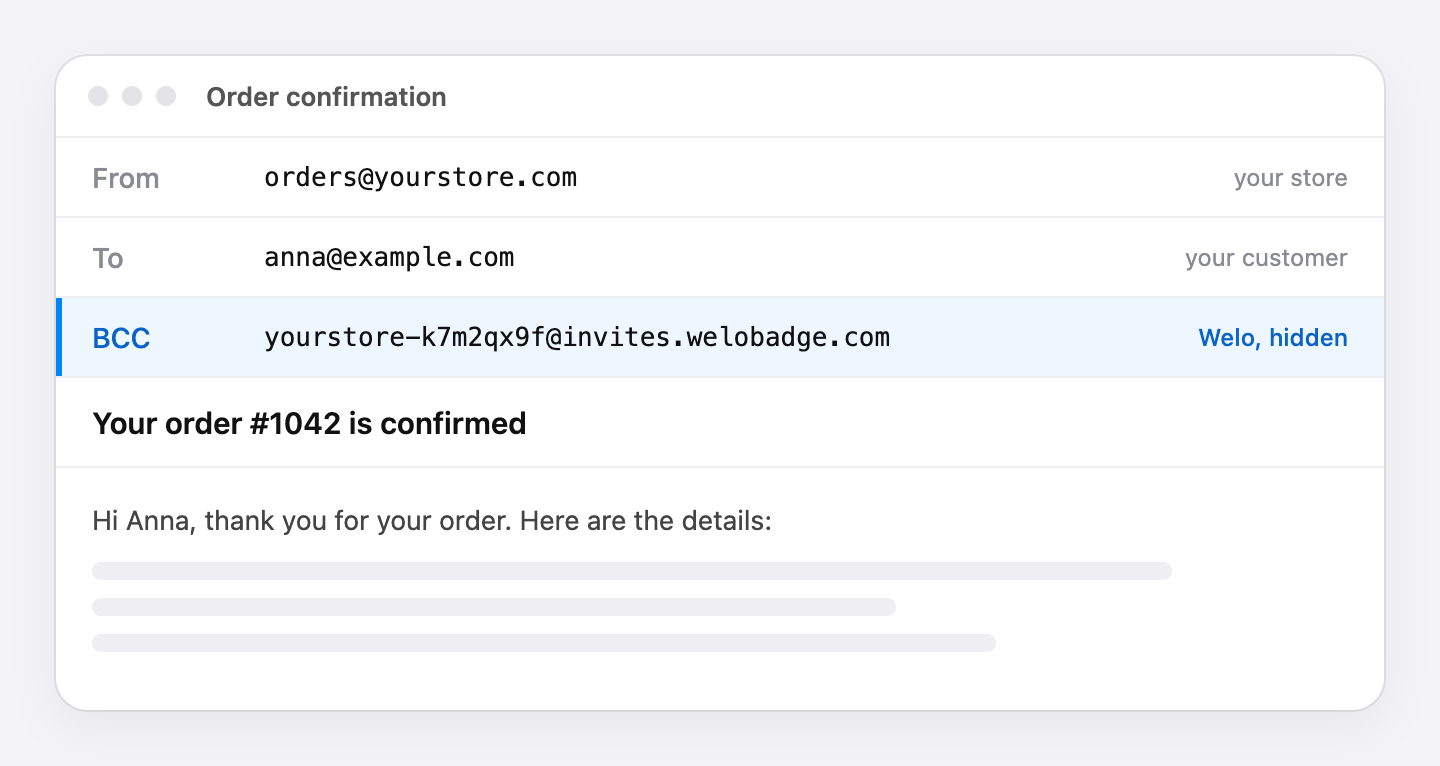
Add the address once, in the template or settings of the order confirmation your store sends to customers, not to a single email. From then on, every confirmation sends the copy automatically. See Where do I find the BCC field on my platform?
Welo needs a blind copy of the same email your customer receives. A separate copy, a forward or a notification sent only to your team doesn't work: Welo can't see who the order is for and skips it as Skipped: no customer found.
3. Authorise the sender
Welo only uses order confirmations sent from addresses you authorise. To find yours, open a recent order confirmation, or place an order on your store with your own email, and look at the From line. That's the address to authorise, for example orders@yourstore.com.
In step 2, Add your sender, enter it under Which address are your order confirmations sent from?, select Add, then Continue. If your confirmations come from several addresses of the same domain, you can add the whole domain, for example yourstore.com. Welo may already list your website's domain: keep it only if your confirmations are sent from it.
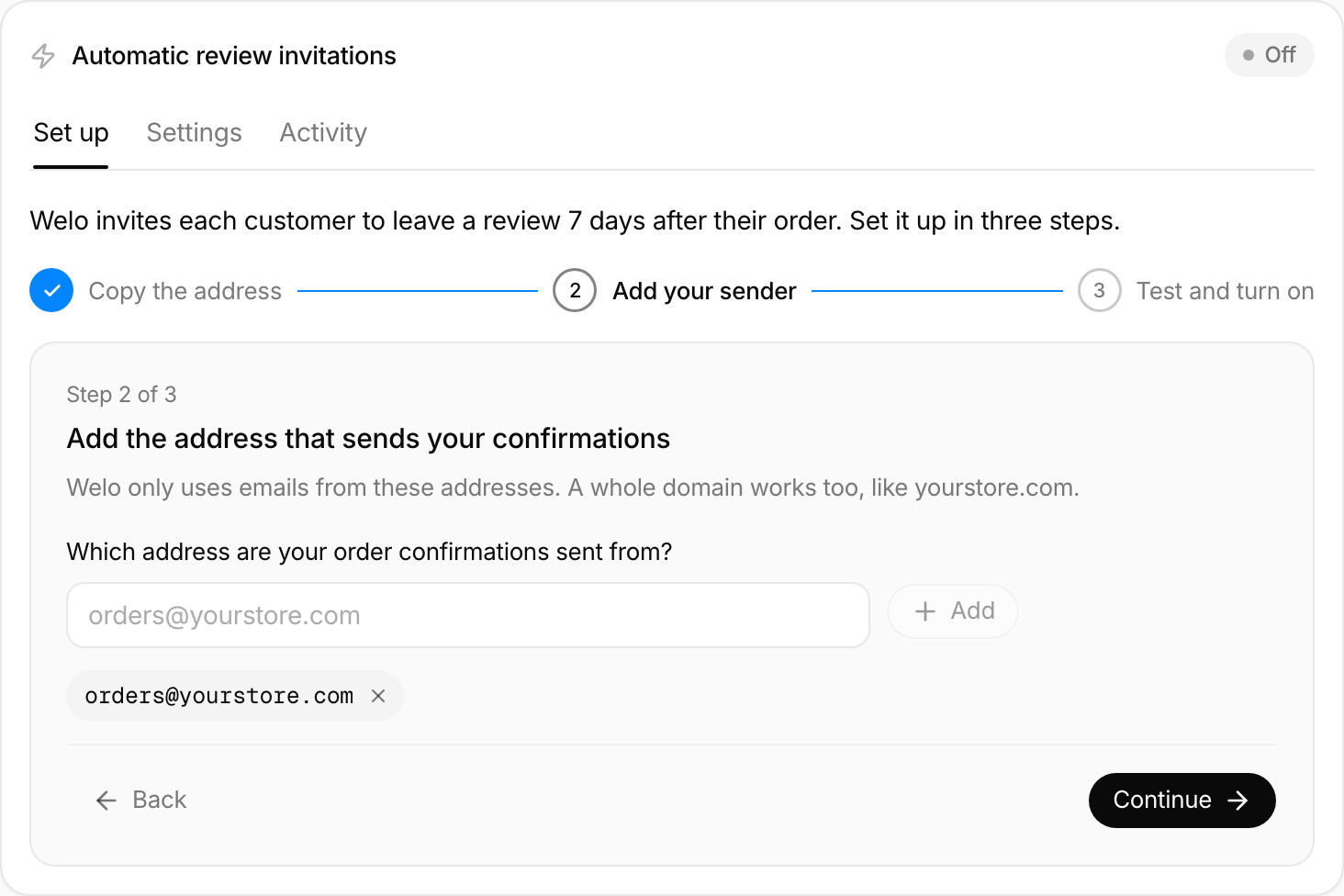
The sender's emails must also be signed for its domain (DKIM), or the domain must have a DMARC policy. Most email services do this once your domain is set up with them. If not, Welo skips the confirmations as Skipped: sender not verified: see Authentication didn't pass.
4. Test and turn on
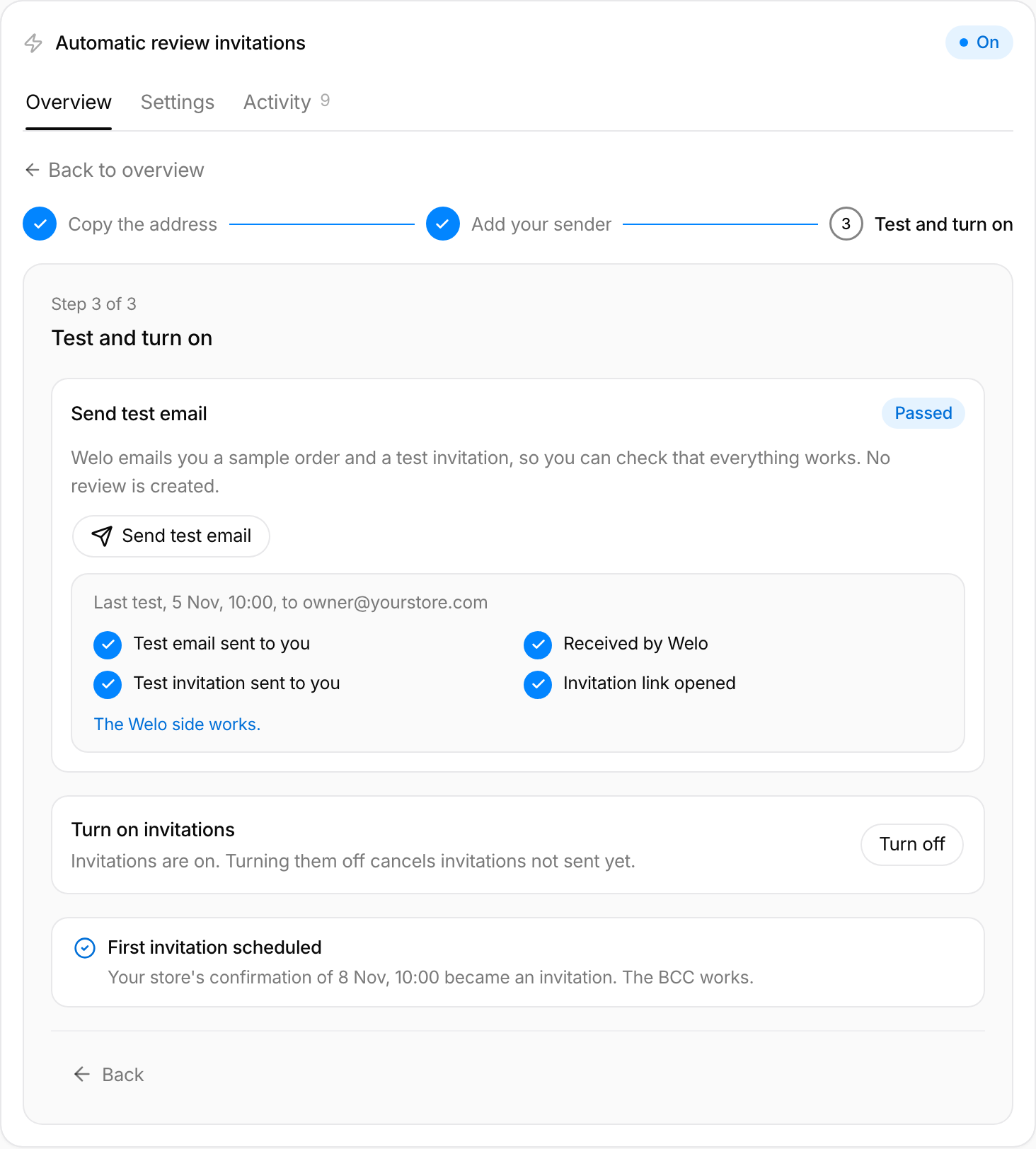
Step 3, Test and turn on, has two checks. They test different things, so we recommend both.
| Check | What it proves | Where you see the result |
|---|---|---|
| Send test email | The Welo side works. Welo sends you a sample order email, receives its copy and emails you a test invitation. Open the button in the test invitation to finish. No review is created and the test doesn't count toward your monthly limit. | Step 3 shows each stage, then Passed. |
| A test order from your store | Your BCC is in the right place: Welo receives a real order confirmation from your store. | Step 3 as soon as a confirmation arrives, Your store in the overview once invitations are on, and Activity › Received. |
For the test order, use a personal email address that isn't on your store's domain and doesn't belong to a member of your Welo team: Welo skips its own team's addresses.
In step 3 and under Your store you see:
- Waiting for your first order confirmation: nothing has arrived yet. The confirmation appears a few seconds after your store sends it.
- First confirmation received: the BCC works. If invitations were still off, no invitation was created, so you can test without inviting anyone.
- First invitation scheduled: invitations were on and the confirmation became an invitation.
- Last confirmation not used, with the reason: see If something isn't working.
When the checks pass, select Turn on automatic invitations. Only order confirmations received from then on are invited. To stop, select Turn off: invitations not sent yet are cancelled.
In the Settings tab:
- Send the invitation sets the delay after the order email: 3, 7 or 14 days, or Custom from 1 to 60 days. The default is 7 days. A change applies to new orders.
- Reminder: turn on Send one reminder to send one reminder 7 days after the invitation, only if the customer hasn't left a review. It's off by default.
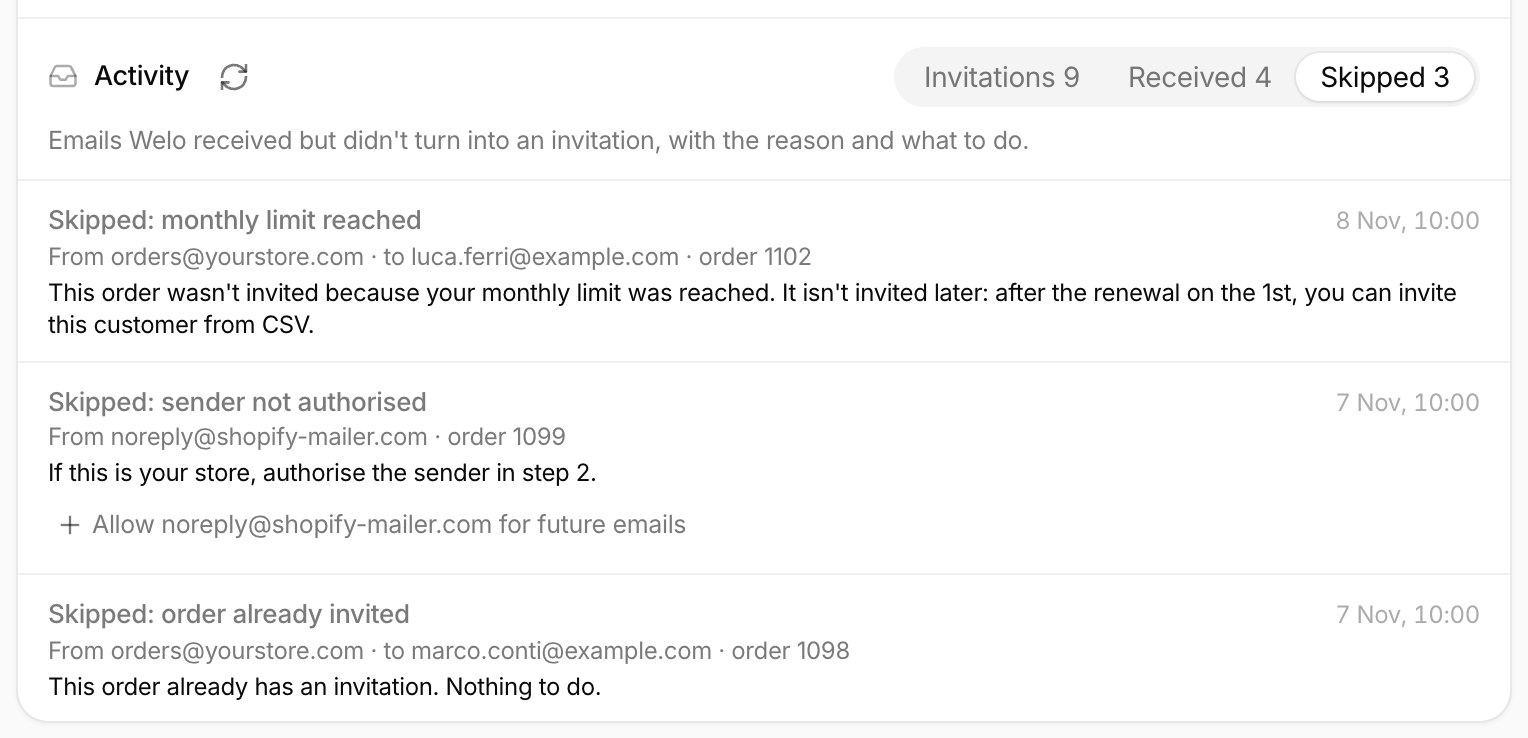
Activity has three tabs: Invitations (each invitation and its status), Received (every email Welo received and what it did with it) and Skipped (emails not turned into an invitation, with the reason and what to do).
Monthly limit and notices
Welo Standard includes 500 review invitations per month in total. Automatic invitations and invitations sent from CSV use the same allowance: for example, after 350 automatic invitations and 50 from CSV, you have 100 left. On an Enterprise plan, your limit is the one agreed with Welo.
Get reviews shows the same counter in Automatic invitations and in Send invitations from CSV.

What counts
- An automatic invitation counts when Welo schedules it, that is on the day Welo receives the order confirmation, even if it's sent the following month.
- A CSV invitation counts when you send or schedule the list.
- Reminders, test emails and resending an invitation from the history don't count.
- Confirmations Welo skips don't count, and neither do invitations that are cancelled (for example because you turned automatic invitations off before they were sent), fail, bounce or expire.
The count starts again on the 1st of every month at 00:00 UTC. It follows the calendar month, not your billing date.
At 80%
When you've used 80% of your invitations (400 of 500), Get reviews and your Overview show a notice. On Welo Standard, the account owner also receives one email that month: You've used 400 of your 500 monthly invitations. You have 100 left. Need more invitations? Talk to our team. You can turn this email off in Settings › Notifications, under System notifications.

At 100%
Get reviews and your Overview show Monthly limit reached, with the date your invitations renew, and that new BCC and CSV invitations are paused. Until then:
- Invitations already scheduled are still sent on their date.
- Order confirmations received after the limit are not turned into invitations. They appear in Activity › Skipped as Skipped: monthly limit reached, and they aren't invited later. After the renewal, you can invite those customers from CSV.
- CSV uploads are paused. If a list is longer than what's left, the preview tells you before you send (for example Only 20 of 35 emails will be sent) and only the emails that fit are sent.
- Resending an invitation from the history isn't available.
Need more invitations? Talk to our team.

Where do I find the BCC field on my platform?
We checked these platforms against their own settings and documentation. If yours isn't listed, look for a BCC field in the settings or template of the order confirmation sent to customers, then check it with a test order.
| Platform | BCC on customer order confirmations |
|---|---|
| Adobe Commerce and Magento 2 | Built in |
| WooCommerce | With a plugin or a few lines of code |
| Shopware 6 | With an extension or custom code |
| PrestaShop | With a module or custom code |
| Shopify | Not available: use CSV or your link |
| Wix, Squarespace, Square Online | No option found: use CSV or your link |
How to check that it works, on any platform: place a test order with a personal email address. Within a minute, step 3 shows First confirmation received (or First invitation scheduled if invitations are on), and the email appears in Activity › Received.
Adobe Commerce and Magento 2
Built in.
- In the admin, go to Stores › Settings › Configuration › Sales › Sales Emails. If you have several stores, choose the store view in the scope switcher. To edit a field, clear Use system value next to it.
- Open the Order section and check that Enabled is set to Yes.
- In Send Order Email Copy To, paste your Welo address. If the field already has an address, add Welo's after a comma.
- Set Send Order Email Copy Method to Bcc. The other option, Separate Email, sends a separate copy that Welo can't use.
- Select Save Config.
Check it: place a test order. If your store sends emails asynchronously (Sales Emails › General Settings › Asynchronous sending), the copy arrives when the email queue runs.
WooCommerce
Not built in. In WooCommerce › Settings › Emails you can set recipients only for the emails sent to your store, such as New order. Adding Welo there doesn't work, because that email isn't sent to the customer. You have two options:
- A plugin that adds a BCC to the order emails sent to customers. Add your Welo address to Processing order, and to Order on-hold if you accept payments such as bank transfers.
- Ask your developer to add a Bcc header with this code, using your own Welo address:
add_filter( 'woocommerce_email_headers', function ( $headers, $email_id ) {
    if ( in_array( $email_id, array( 'customer_processing_order', 'customer_on_hold_order' ), true ) ) {
        $headers .= "Bcc: yourstore-k7m2qx9f@invites.welobadge.com\r\n";
    }
    return $headers;
}, 10, 2 );
Check it: place a test order. If an order is first on hold and then processing, Welo receives two confirmations and invites the customer once.
Shopware 6
Not built in. The Send email action in Settings › Shop › Flow Builder can send the email to other recipients, but not as a blind copy of the customer's email. You need an extension from the Shopware Store, or custom code, that adds a BCC to the order confirmation of the Order placed flow.
PrestaShop
Not built in. PrestaShop has no BCC setting for the order confirmation sent to customers (the order_conf email). You need a module, or custom code, that adds a BCC to it.
Shopify
Not available. Shopify doesn't let you add a BCC to the notifications your customers receive, and staff order notifications are separate emails that Welo can't use. Use Send invitations from CSV, for example with an export of your recent orders, or Share your link.
Wix, Squarespace and Square Online
No option found. We found no way to add a BCC to the order confirmations these platforms send to customers. Use Send invitations from CSV or Share your link.
Another platform or your own system
Look for a BCC field in the settings or template of the customer order confirmation. If your developers send the emails, ask them to add a Bcc header with your Welo address and keep the customer in To. Then check it with a test order.
If something isn't working
Start in Get reviews › Automatic invitations › Activity. Received lists every email Welo received and what it did with it. Skipped lists the emails not turned into an invitation, with the reason and what to do.
The BCC copy doesn't arrive
Where to look: step 3 shows no order confirmation, Your store still shows Waiting for your first order confirmation, and Activity › Received is empty.
- Check that you pasted the whole address, without spaces, in the BCC of the email sent to customers, not in an email sent to your team.
- Check that the order was placed after you saved the setting: earlier confirmations aren't copied.
- Check that your store sends order confirmations at all (in Magento: Sales Emails › Order › Enabled).
- If Activity shows Unknown BCC address, the address has a typo: copy it again.
- If Activity shows Skipped: no customer found, Welo received a separate copy or a forward, not a blind copy: see step 2.
Still nothing 15 minutes after a test order? Write to support@welobadge.com with the time of the order.
Sender not authorised
Where to look: Activity › Skipped shows Skipped: sender not authorised, with the sender's address.
What to do: if it's your store, select Allow … for future emails on that row, or add the address in step 2. Confirmations already skipped aren't processed again: you can invite those customers from CSV.
Authentication didn't pass
Where to look: Activity › Skipped shows Skipped: sender not verified, with the signature results (DKIM and DMARC).
What to do: Welo only accepts confirmations signed for the sender's domain. Ask your email provider, or whoever manages your domain, to set up DKIM for the domain your confirmations are sent from, or to publish a DMARC policy for it. Then place a new test order. If Send test email fails because the signature could not be verified, send the test again; if it fails twice, write to support@welobadge.com.
Order already invited
Where to look: Activity › Skipped shows Skipped: order already invited or Skipped: customer invited in the last 30 days.
What to do: nothing. Welo sends one invitation per order, even if your store sends the confirmation twice, and one per customer every 30 days, whatever the channel.
Monthly limit reached
Where to look: Get reviews shows Monthly limit reached with the renewal date, and Activity › Skipped shows Skipped: monthly limit reached for each order received since.
What to do: those orders aren't invited later. After the renewal on the 1st, you can invite those customers from CSV. If you regularly need more invitations, talk to our team.
Still stuck? Contact Welo support