What Is a Welo Page and How Does It Work?
A Welo Page brings company information, Welo Badge certification details, published documents, and Welo Verified Reviews together in one public profile. Learn how visitors use it and how businesses create, manage, and share theirs.

On this page
A Welo Page is a public company profile hosted by Welo Badge, the business verification and trust certification program. It brings company information, certification details, approved Welo Trust Score data, published documents, and Welo Verified Reviews together so visitors can learn about a business in one place.
Anyone can open a public Welo Page without registering. For businesses, it provides a destination to share with customers directly or through a website widget, connecting the visible certification signal with the information behind it.
TL;DR
A Welo Page is the public information destination associated with Welo Badge, while a website widget helps customers open the page or see selected review information.
Visitors can consult published company details, policies, certification information, and customer feedback. Available content varies by page.
Businesses complete application review and the required activation steps before preparing and sharing their public profile, then manage its content through the client portal.
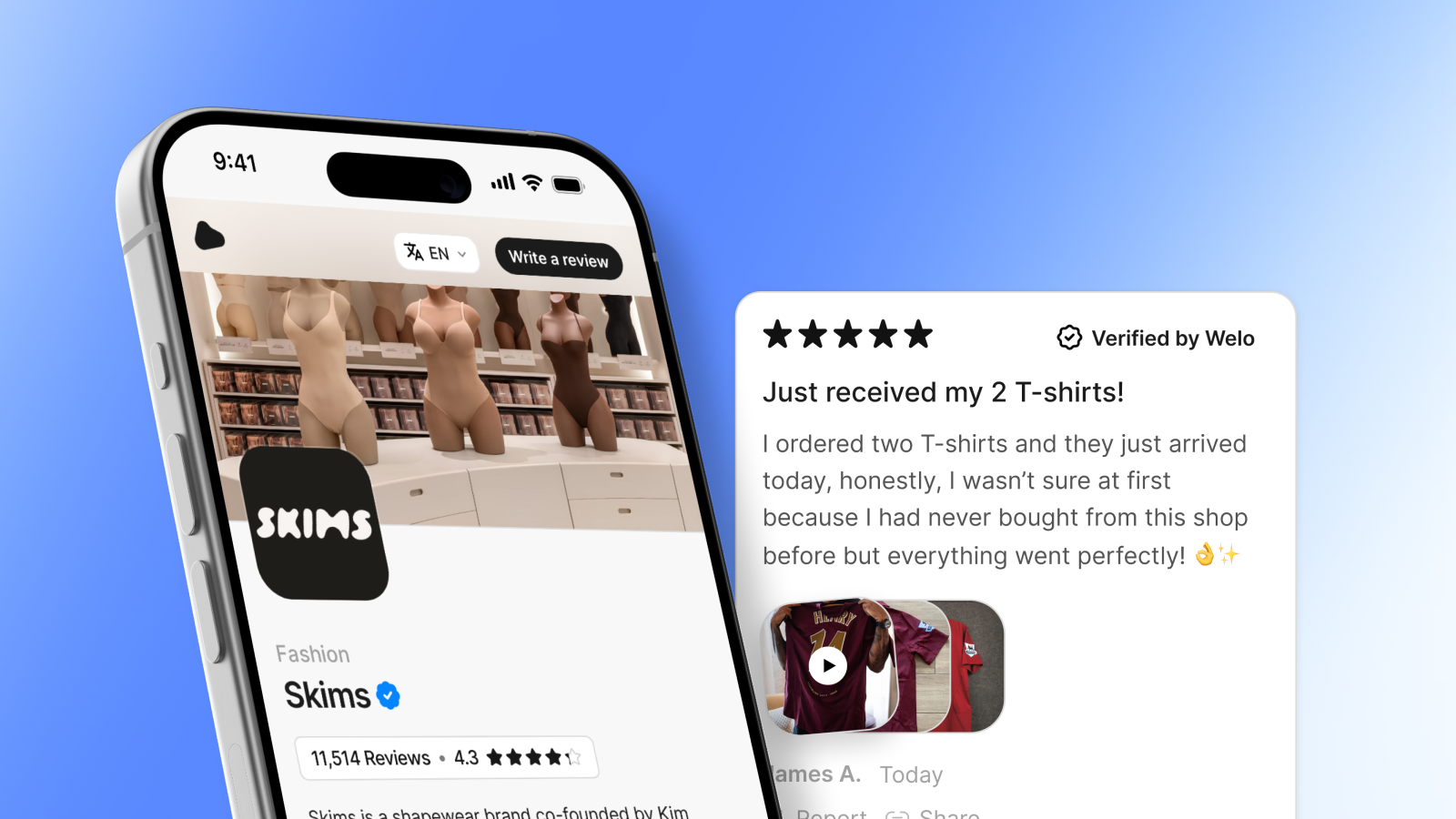
What Is a Welo Page from Welo Badge?
A Welo Page gives customers a place to check who a company is, how to contact it, what policies it publishes, and what its certification means. Because the profile is hosted by Welo Badge, visitors can reach it outside the company’s own website as well as through a badge installed there.
Three related elements serve different purposes:
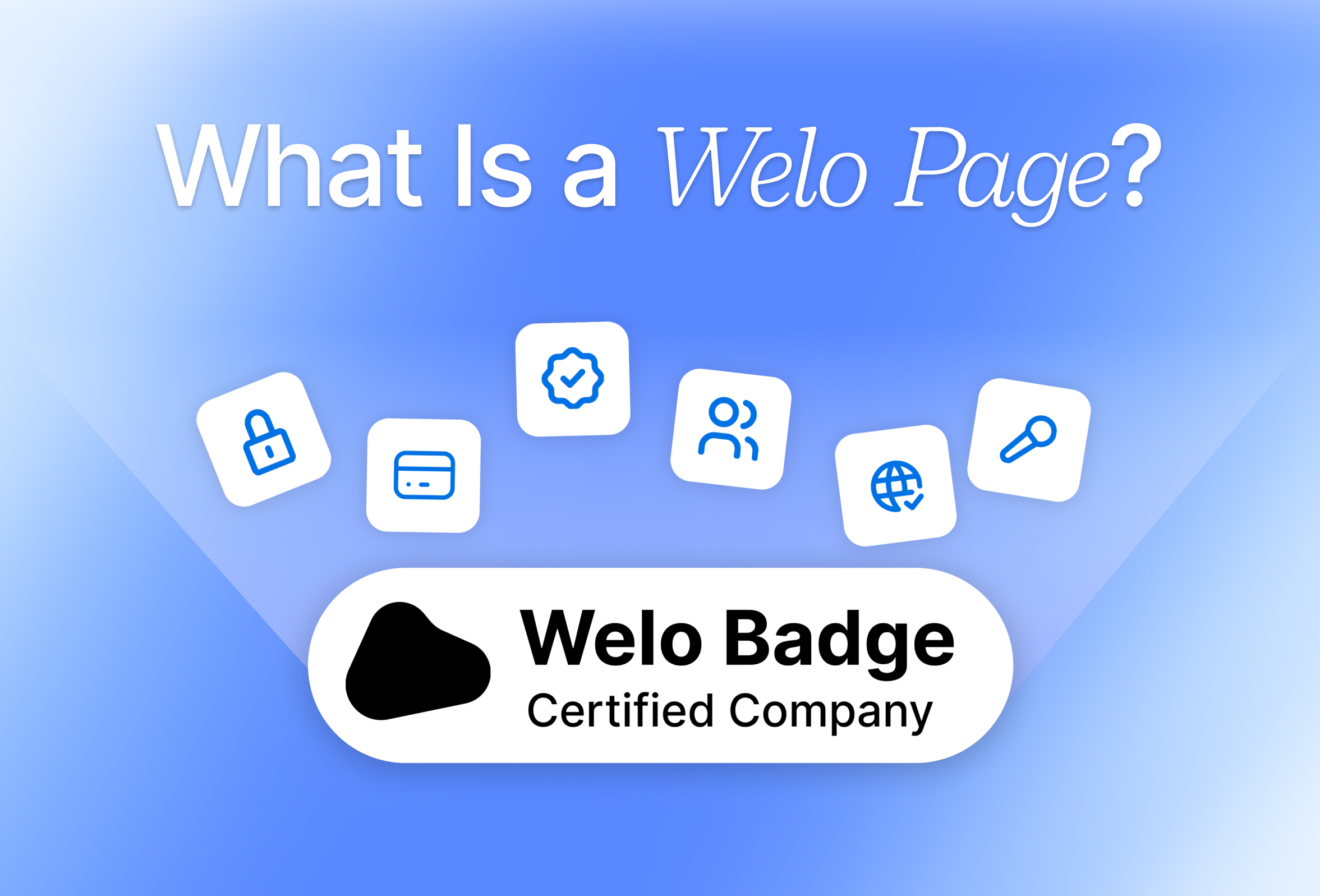
Welo Badge: the business verification and trust certification program, with certification earned through assessment against its requirements.
Welo Page: the public company profile where visitors can consult published information and relevant certification details.
Website widget: an embedded tool that opens the page or displays selected information on the company’s website. The Floating Badge opens the company’s Welo Page in a popup.
For the broader explanation of the program, read what Welo Badge is and how it works.

SKIMS
SKIMS Welo Page
Explore how a Welo Page presents company information, customer reviews, and public trust details.
What Visitors Can Find on a Welo Page
A Welo Page combines information about the business with assessment information and customer feedback. Not every company publishes the same content, so visitors should use the sections and materials available on the specific page they are viewing.
Information on a Welo Page | What it tells visitors | Publication context |
|---|---|---|
Company profile | Who the business is and how to reach it | Published logo, description, company size, support, help center, and legal links |
Certification and Welo Trust Score | Relevant certification information and standards-based assessment results | Approved information available on the page |
Policies and documents | The company’s published terms, policies, and supporting materials | Public content, separate from private verification files |
Existing external credentials | Certifications or other credentials the company chooses to show | Where published by the company |
Welo Verified Reviews | Customer experiences, with search and sorting | Published reviews, sometimes including optional photos or videos |
Updates and links | Company news, selected partners, and social channels | Where published; email subscriptions are available for company updates |
These details answer different questions. A support link helps someone reach the business, a cancellation policy explains the terms of a subscription, and a review describes a customer’s experience. Together, they make relevant information easier to find without treating every type of content as the same kind of evidence. The Welo Badge features overview describes these public-page capabilities.
How a Welo Page Connects to Welo Badge Certification
The Welo Trust Standard is the framework used for business verification and trust certification. It combines five mandatory pass/fail requirements with eight weighted Trust Topics, allowing the assessment to consider both essential conditions and the business’s broader practices.
The mandatory requirements cover a real and consistent online presence, verifiable identity and contactability, usable essential policies, the absence of critical red flags, and accurate information supplied during verification. A strong score elsewhere cannot make up for failing one of these requirements.
The eight Trust Topics assess identity and ownership, baseline security signals, privacy and data handling, payment transparency, legal policies, support and dispute handling, reputation, and risk signals. Their weighting produces the Welo Trust Score, an assessment out of 100. It is not a customer star rating: the score reflects the standards-based evaluation, while published Welo Verified Reviews reflect customer feedback subject to verification and moderation.
Existing external certifications shown on a profile are also distinct from Welo Badge certification. Displaying a credential does not mean the program issued it or guarantees compliance with that external standard.
Certification reflects the evaluation at the time of verification, so visitors should consult the page’s relevant certification information rather than assume permanent approval from a badge image. It does not guarantee product quality, delivery, or an issue-free experience, and it does not replace consumer rights.
How Visitors Use a Welo Page
You do not need to understand every assessment detail to use the page. Start with the company’s identity, then look for information that matters to your decision:
Open the page. Use the company’s shared Welo Page link or click its Floating Badge to open the page in a popup.
Identify the business. Check the company description and available contact or support information.
Read the certification information. Consult the available assessment details and distinguish the Welo Trust Score from customer ratings.
Check relevant policies and feedback. Read published terms or documents, then search or sort reviews to find experiences relevant to your needs.
For example, before subscribing to a service, you might check its published cancellation policy and search customer feedback for experiences involving cancellation or billing. This is a practical way to compare the company’s stated terms with the experiences customers describe, rather than relying on an overall rating alone.
You can also read published company updates and, where offered, subscribe to receive them by email. The value is clearer access to information and expectations, whether you are considering a first purchase or looking for support after becoming a customer.
How Businesses Get a Welo Page Through Welo Badge
The program assesses businesses including ecommerce stores, SaaS companies, subscription services, digital-product businesses, and consumer services. Eligibility depends on the business and its activities, with some sectors excluded. The guide to Welo Badge eligibility and requirements explains who can apply.
The route to a public page follows the application and verification process:
Submit the requested company and contact details. Start the application and continue through the tasks shown in the client dashboard.
Complete the requested information and evidence. Depending on the business, the team may request website information, documents, corrections, or additional supporting material.
Receive the review decision. The team reviews the application and confirms whether the business can proceed.
Complete the applicable activation steps. Application review comes before the applicable plan is proposed. Any required setup fee or subscription step shown in the portal must be completed to activate the service.
Prepare and review the public profile. Manage the page through Edit Welo Page and check it before sharing.
Starting an application or receiving an initial decision is not the same as completing certification and having a publicly available page. Follow the next steps shown for your company in the portal.
There is no single document checklist for every applicant. For preparation, see what documents may be required for Welo Badge certification; for the current sequence, follow the application and go-live instructions.
How Businesses Manage Their Welo Page
Businesses manage public company information through Edit Welo Page in the client portal. The editor offers a live preview, helping you check content while you prepare it, although changes may require review before appearing publicly.
Keep public content separate from private verification files
Published policies and documents are intended for visitors. Private files requested for verification belong in Documents, not in public-page fields. This distinction lets you provide evidence for assessment without treating every submitted file as material to publish.
Before adding a document to the public page, check that it is intended for customer access and does not include confidential information.
Collect and manage Welo Verified Reviews
The portal’s Get reviews area provides available invitation and sharing tools, while Reviews lets businesses browse submitted feedback and use the available filters. Invitations and tools are subject to the limits shown in the account.
Welo Badge supports review submissions, verification and fraud checks, moderation, reporting, and publication of eligible Welo Verified Reviews. Customers may attach photos or videos, and businesses can report feedback that raises concerns for review. Media is optional, and the presence of a review should not be read as a guarantee of a verified purchase or absolute authenticity.
The client portal documentation is the current reference for managing page content, documents, and reviews.
How to Share Your Welo Page with Welo Badge Widgets
You can share your Welo Page link in emails, social bios, landing pages, or QR codes without installing a website widget. A direct link gives customers access to the public profile wherever they encounter your business.
Widgets add access or review displays to your own website. The Floating Badge opens the Welo Page in a popup, while the Reviews Widget displays ratings and verified review counts inline. Other options in the current widget catalog include Video Reviews for review media, Tag Widget for small verified tags, and Full Review for individual review cards.
To install one:
Open Widget in the client portal and choose an available option.
Configure it and check the preview.
Select Copy code and copy the complete company-specific snippet.
Paste it into the appropriate website area without changing its company URL or settings.
Save and publish the website changes, then check the result on desktop and mobile.
Your website must permit the required external scripts. Placement depends on the widget and your website builder, so use the maintained widget installation instructions and website builder integration guide rather than assembling your own snippet.
Make Your Welo Badge Certification Easy to Explore
A useful Welo Page connects the certification signal with information customers can actually consult: who operates the business, where to get help, which terms apply, and what published customer feedback says. For businesses, the practical priority is to prepare a clear profile and place its link where customers naturally have questions.
If your business is ready to make that information easier to find, explore Welo Badge certification for your business and begin with the application requirements.
FAQ
Can visitors open a Welo Page without a Welo Badge account?
Yes. Public Welo Pages can be viewed without registration, either through a shared link or through the company’s Floating Badge.
Can a business update its Welo Page after it goes live?
Yes. Use Edit Welo Page in the client portal to update public company information. Changes may require review before they appear publicly.
Does a Welo Page show every document submitted to Welo Badge?
No. Public-page documents are separate from private verification files. Files requested for verification belong in Documents, while the page presents content intended for public access.
Is the Welo Trust Score the same as a customer review rating?
No. The Welo Trust Score is a standards-based assessment out of 100. Customer review ratings represent feedback from customers, with eligible Welo Verified Reviews published after the applicable checks and moderation.
How much does Welo Badge cost for a business that wants a Welo Page?
Check the applicable offer in your client portal or contact support for the terms for your business, including any setup fee and subscription requirements.
Can a Welo Badge subscription change affect access to a Welo Page?
Yes. Subscription changes can affect access to the Welo Page, widgets, and analytics. Check your dashboard after a change or consult the subscription management instructions for help.