How to Apply for Welo Badge: Step-by-Step Guide
Follow the Welo Badge application process, from registration and requested documents to review, activation, your public Welo Page, and widget installation.


On this page
To apply for Welo Badge, create an account, submit your business information, and complete the requested verification. Qualifying businesses can then activate their certification, prepare a public Welo Page, and install a clickable badge that helps customers explore their business information, verification details, and published customer reviews.
The guide below walks through eight steps, from preparing your application to using your certification on your website. Follow the next action shown in your dashboard throughout the process, since the information and evidence requested depend on your business.
TL;DR: Applying for Welo Badge
Create your account, then complete and submit the application. Registration alone does not submit an application or establish certification.
Respond to review questions and verification requests. Initial approval lets your business proceed, while certification requires successful verification and final approval.
After approval, review the applicable plan and complete any required activation steps before preparing your public Welo Page and installing your widget.
Once available, use Welo Verified Reviews to invite customer feedback. Review collection is optional, not a requirement for applying.
The Welo Badge Application Process at a Glance
Account setup, application review, business verification, and activation serve different purposes. This overview shows what you need to do at each stage, with detailed instructions below.
Stage | Your action | What this stage establishes |
|---|---|---|
Registration | Create your account. | Access to the client dashboard. |
Application submission | Complete and submit the requested business information. | Your application is ready for review. |
Initial review | Monitor updates and answer questions. | Whether your business can proceed. |
Business verification | Provide requested evidence and corrections. | Whether your business meets the standard. |
Approval and activation | Review the decision, offer, and required activation steps. | Service activation after the requirements are completed. |
Public-page preparation | Prepare, preview, and submit your Welo Page. | A reviewed public profile customers can consult. |
Website installation | Generate and install your widget code. | A connection between your website and public trust information. |
Optional review collection | Use available invitations or your review link. | Customer feedback submitted for verification and moderation. |
Before You Apply for Welo Badge
Welo Badge is designed for registered businesses with a verifiable identity and an active online presence, including ecommerce brands, SaaS products, subscription services, digital products, and consumer-facing services. Marketplaces may be considered case by case when their consumer protections are clearly defined.
Before applying, check that your website explains what you sell, identifies the business behind the offer, and gives customers a working support channel. Your main purchase or signup flow should function, and relevant policies should be easy to find and consistent with what customers see at checkout.
The Welo Trust Standard explains the foundation requirements, evaluated trust topics, and excluded activities. These include gambling, restricted weapons, illegal substances, explicit adult content, counterfeiting, and deceptive schemes, among other categories described in the standard.
Information to prepare | What to check | When to provide it |
|---|---|---|
Business and contact details | Names, identity information, and support contacts are accurate and consistent. | As requested during registration and application. |
Website and business description | Your site works and clearly explains your products or services. | In the application and any follow-up requests. |
Customer policies | Privacy, terms, and relevant refund, return, shipping, or cancellation rules are accessible. | Keep them available on your site; provide details when requested. |
Pricing and subscription information | Charges, renewals, and cancellation conditions are clear where relevant. | On your website and in requested explanations. |
Supporting evidence | Requested files are current and match the business information supplied. | When requested through the portal. |
This is a preparation checklist, not a fixed list of mandatory documents. The evidence needed depends on your business model and the questions that arise during review.
Step 1: Create Your Welo Badge Account
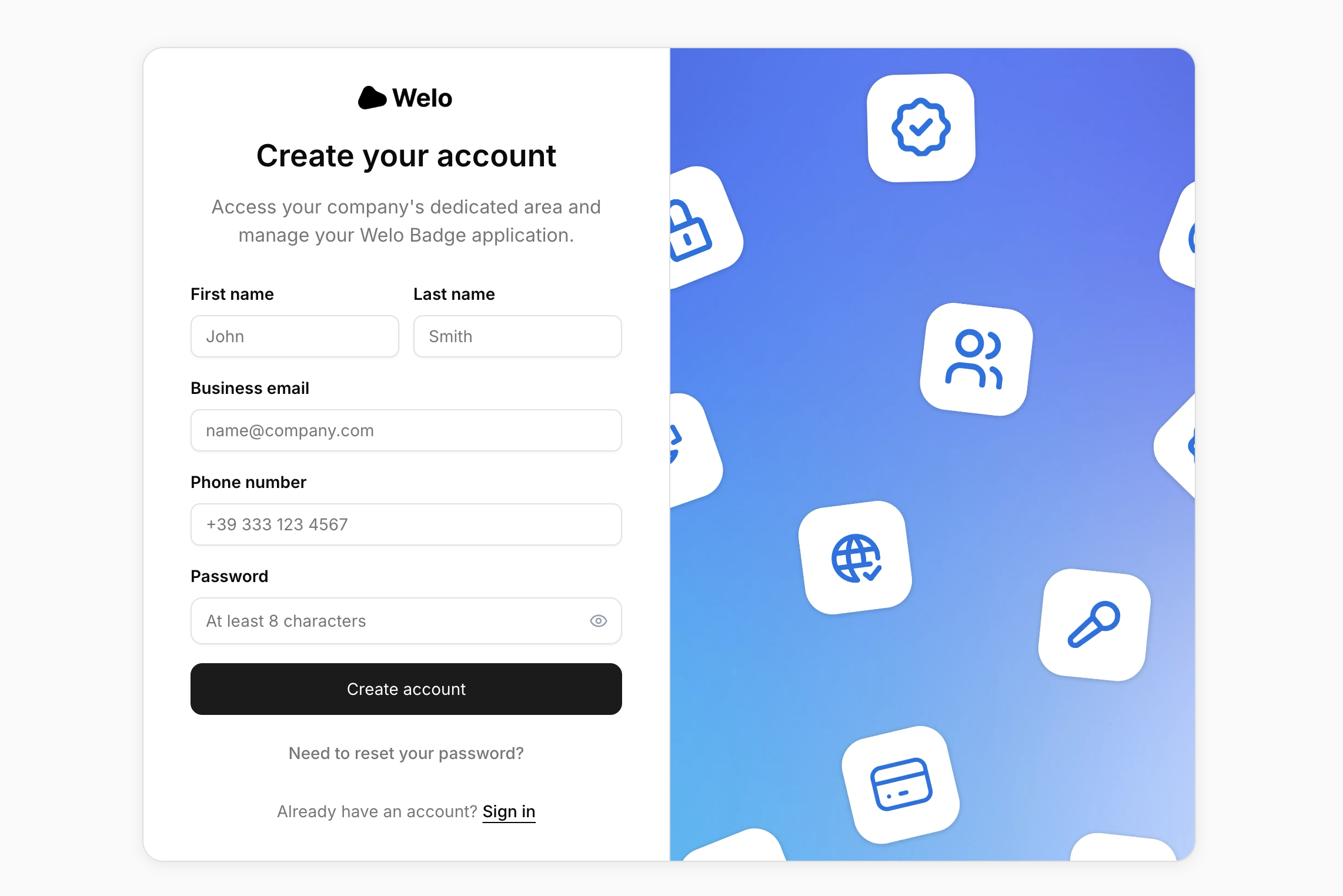
Create your Welo Badge account through the official registration page and complete the details requested. Use an email address your team can access so you can follow account instructions and respond to requests.
Your account gives you access to the dashboard, where you can continue unfinished application work and follow progress. After registration, check the next task and continue to the application: creating an account is separate from submitting your business for review.
Step 2: Submit Your Application
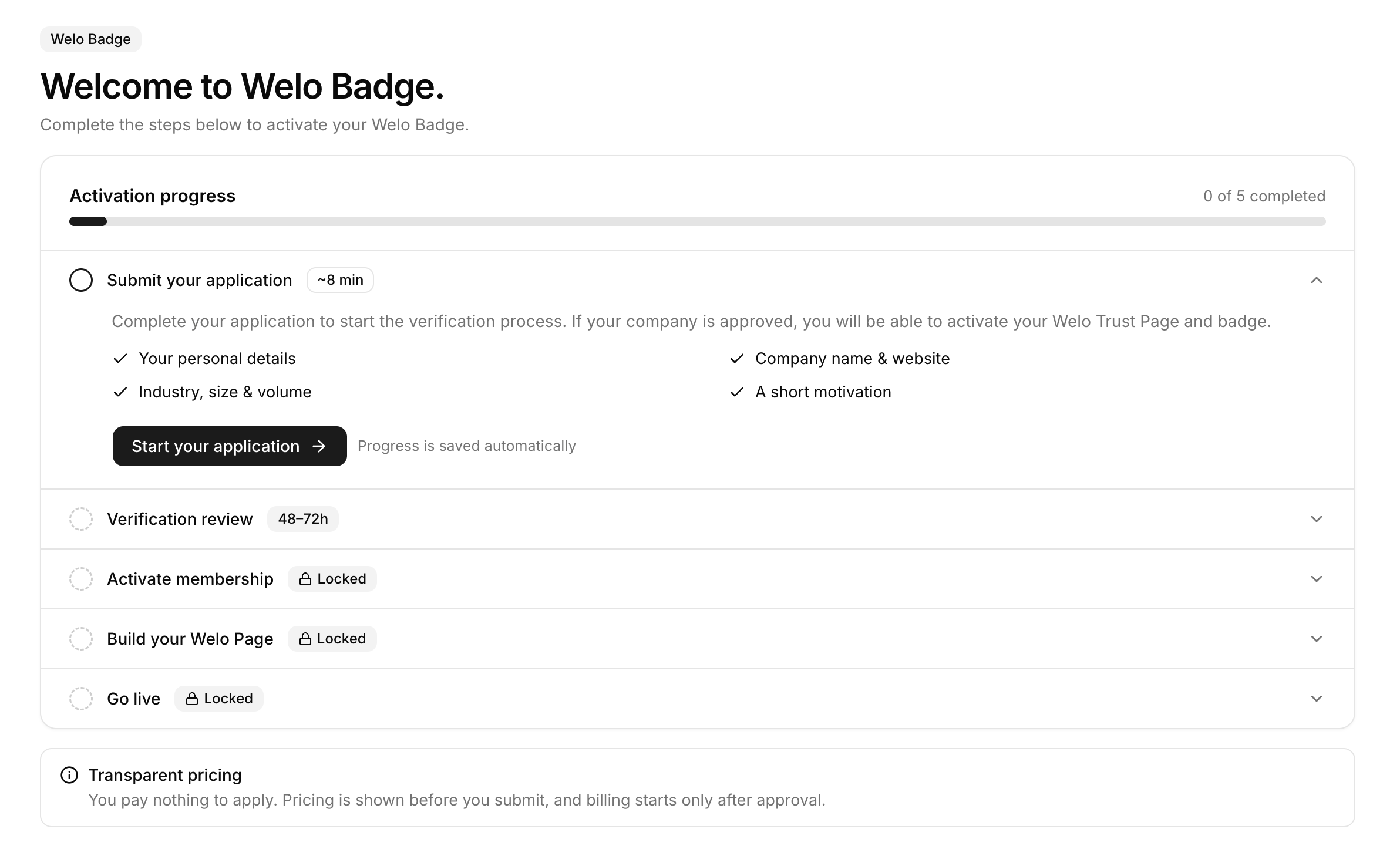
Sign in to complete your Welo Badge application and open the application task shown for your company. Complete the requested information, which may include your business name, website, industry, contact details, and explanations of your activities.
Before submitting, check that the information is current and consistent with your website and any supporting evidence. For example, if you operate a subscription service, your description should make the service and billing model understandable rather than simply naming a broad industry.
Submit the application when the requested information is complete, then check the dashboard for confirmation or the next required action. If the application remains unfinished, continue the outstanding task rather than assuming that registration completed the submission.
Step 3: Wait for Your Welo Badge Application Review
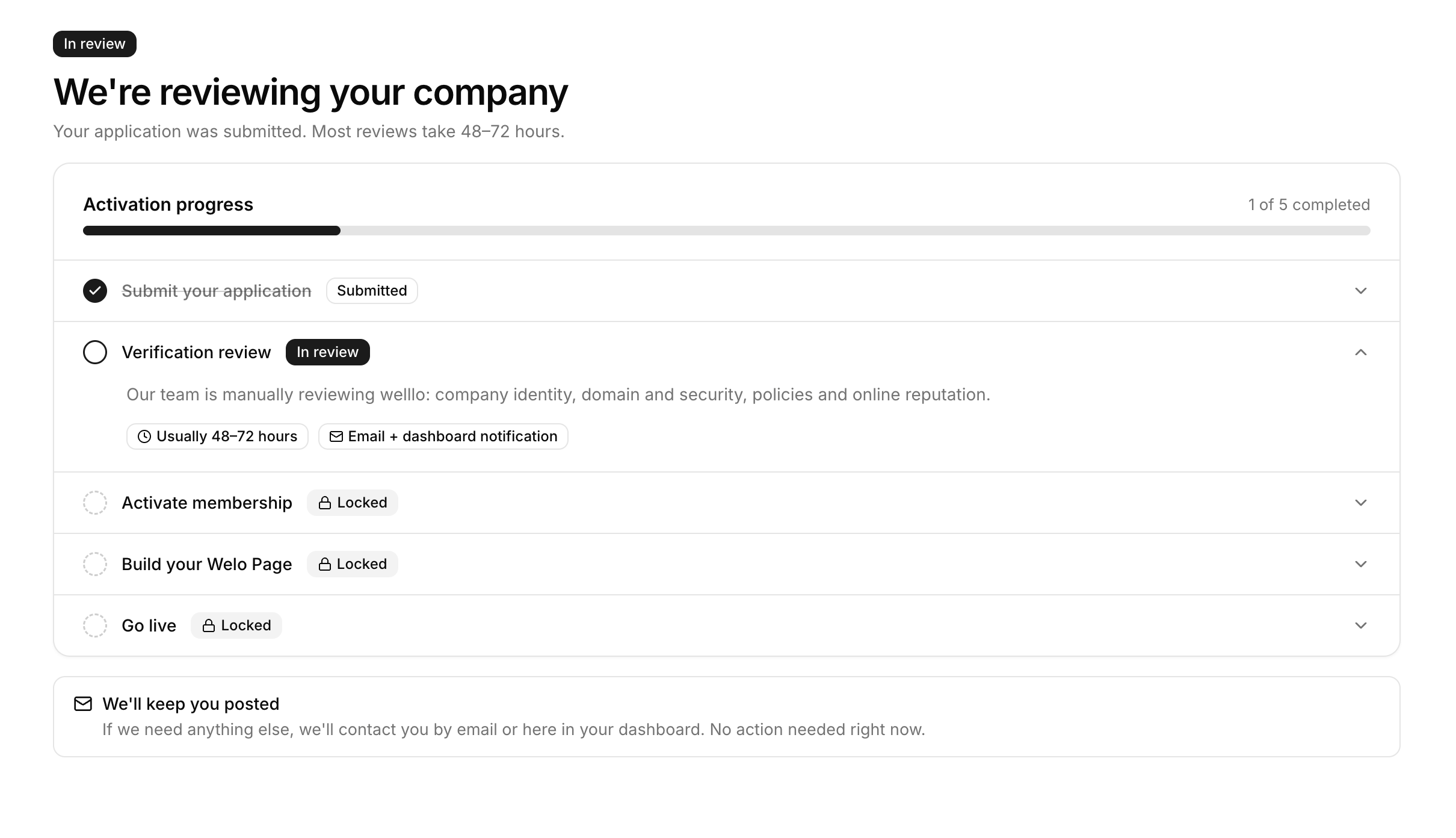
The Welo Badge team reviews your submitted information, website, and eligibility for the program. While the application is being reviewed, sign in to check your application updates and respond to questions or requests for corrections so the team can continue its assessment.
Initial application approval allows your business to proceed with the remaining requirements; it is separate from completed certification. Read the accompanying instructions to understand whether you need to provide more information, complete verification, or take another action.
Use your application updates for progress rather than planning around a fixed approval deadline. If a request is unclear, contact the team through the Welo Badge Help Center for guidance specific to your application.
Step 4: Complete Your Welo Badge Business Verification
Continue the verification started in your application by responding to outstanding requests. The team may ask for additional business information, documents, or explanations of your policies and activities, including checks related to identity, website transparency, payments, customer policies, and risk signals.
Sign in to provide your requested verification information, follow the requests shown for your company, and open Documents to upload requested private files. Submit corrections through the corresponding portal task, checking that each response addresses the question asked and matches the other information you have supplied.
Evidence requests may arise during the application or later verification, so these eight steps describe the overall journey rather than a rigid order for every request. For more context on what the assessment covers, read how Welo Badge verification works.
Private verification uploads are not automatically published on your Welo Page. Keep confidential evidence in Documents rather than placing it in public-page fields; public documents should be materials you intentionally choose to share.
Step 5: Get Approved and Activate Your Welo Badge Certification
After successful verification and the required final approval, sign in to follow your Welo Badge activation instructions. Welo Badge presents the applicable plan after approval, including any required setup fee or subscription step.
Review the offer, pricing, and terms before completing payment and the remaining activation tasks. Payment covers the verification work and applicable services, not a favorable decision, so it does not purchase approval or guarantee certification.
Once you have completed the required steps, check the dashboard for the tools available to your business. The account owner can use billing settings to manage subscription information, with further guidance in managing your Welo Badge subscription.
Step 6: Set Up Your Welo Page with Welo Badge
Once activation is complete and access is available, sign in to manage your Welo Page and open Edit Welo Page. Your Welo Page is the public company profile customers can consult when they click your badge or follow your page link.
Complete or check your company name, logo, description, support information, and legal links. The page can bring together company information, intentionally published documents, approved Welo Trust Score information, and eligible published reviews, giving visitors a clear place to understand your business.
Welo Badge Example: Explore a Welo Page

SKIMS
SKIMS Welo Page
Explore how a Welo Page presents company information, customer reviews, and public trust details.
Use the editor preview to check how your information appears, including links and branding, then submit your changes for review. Check the public result before sharing the page with customers, since changes may require review before they appear publicly.
The Welo Trust Score is an assessment under the Welo Trust Standard, not a customer star rating. It reflects evaluated trust topics, while review ratings represent customer feedback, so keep that distinction clear when discussing your page.
Where available, you can also add company updates, partner information, and selected social channels. Once your page is ready, share its link in customer emails, social profiles, or other relevant business communications. The Welo Badge features overview explains the available page and account tools in more detail.
Step 7: Install Your Welo Badge
Sign in to configure your Welo Badge widget, open Widget, and choose an available option. Configure its settings and use the preview to check the result before selecting Copy code, which generates the snippet for your company and chosen settings.
The Floating Badge connects visitors to your Welo Page, while the inline options let you place reviews, media, or verified information within a specific area of your website.
Widget | What it displays or opens | Placement guidance |
|---|---|---|
Floating Badge | Opens your Welo Page in a popup. | A floating launcher on the left or right side of the screen. |
Reviews Widget | Ratings and verified review counts. | An inline section where customers evaluate your business. |
Video Reviews | Review photos and videos. | An inline area with room for customer media. |
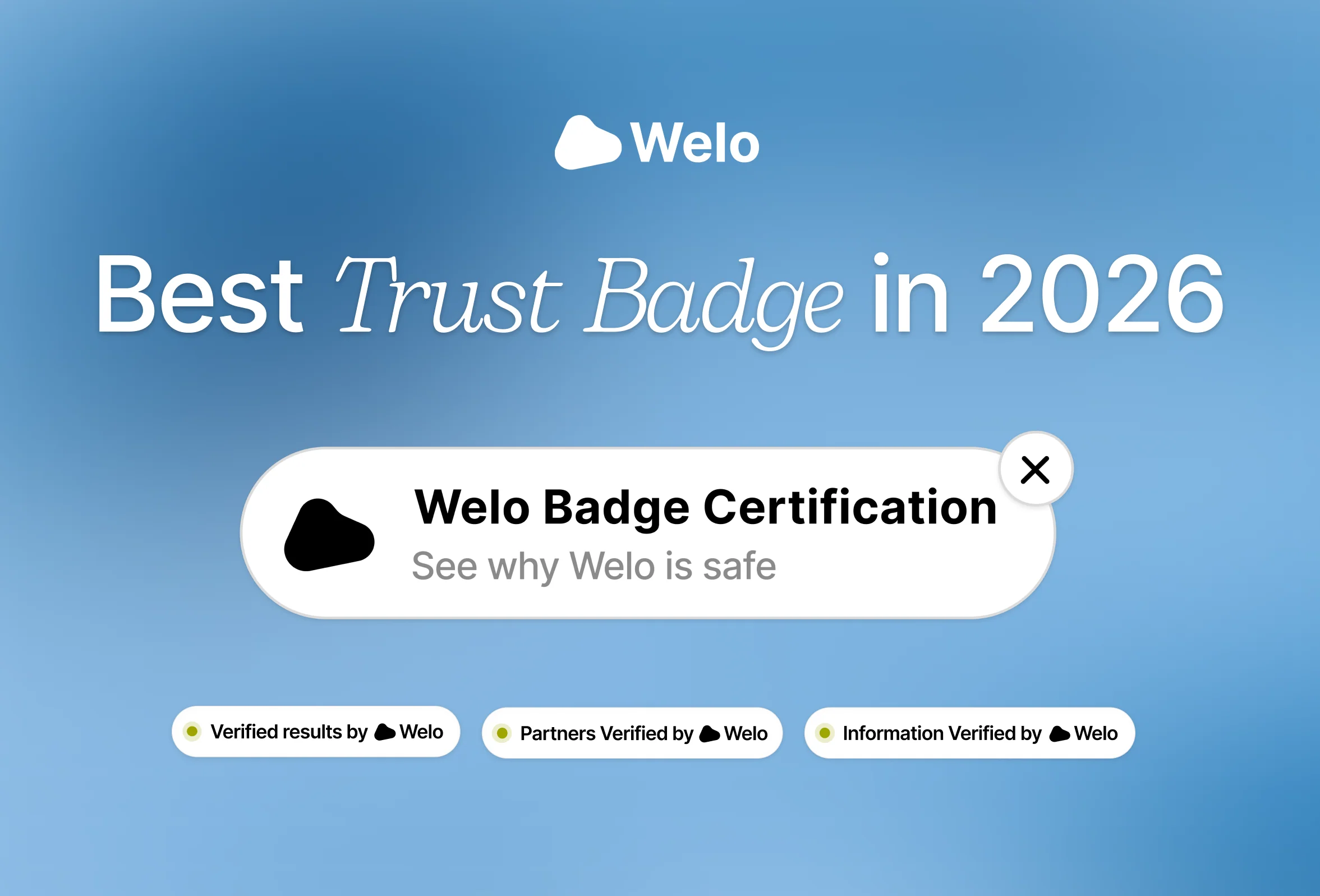
Tag Widget | Verified tags for Results, Partners, or Information. | Beside the relevant claim or context. |
Full Review | A review card with stars, text, and author. | An inline customer-feedback section. |
For the current settings and options, consult the Welo Badge widget catalog. Then install the code as follows:
Copy the complete generated snippet. Keep its URL, company slug, quotation marks, and attributes intact. If you change the widget settings, generate and copy the code again.
Choose the correct placement. The Floating Badge script can be placed before your site's closing body tag. Inline widgets include a container and a script, which belong together in the page section where the widget should appear.
Save and publish your website changes. Open the live page in a new browser tab rather than relying only on your website editor's preview.
Test on desktop and mobile. Check that the widget displays properly and, for the Floating Badge, opens the correct Welo Page.
Use the Welo Badge widget installation guide for the complete workflow, or consult the website-builder installation guidance for common placement areas.
If the widget shows an unavailable state, first check that the generated URL is unchanged and that your website permits external scripts. If your builder does not allow those scripts, contact its support team or Welo Badge support before changing your site.
Step 8: Start Collecting Welo Verified Reviews with Welo Badge
Once the review tools are available, sign in to access your Welo Verified Reviews tools and open Get reviews. You can use the invitation tools available in your account or share your direct review link through relevant customer communications.
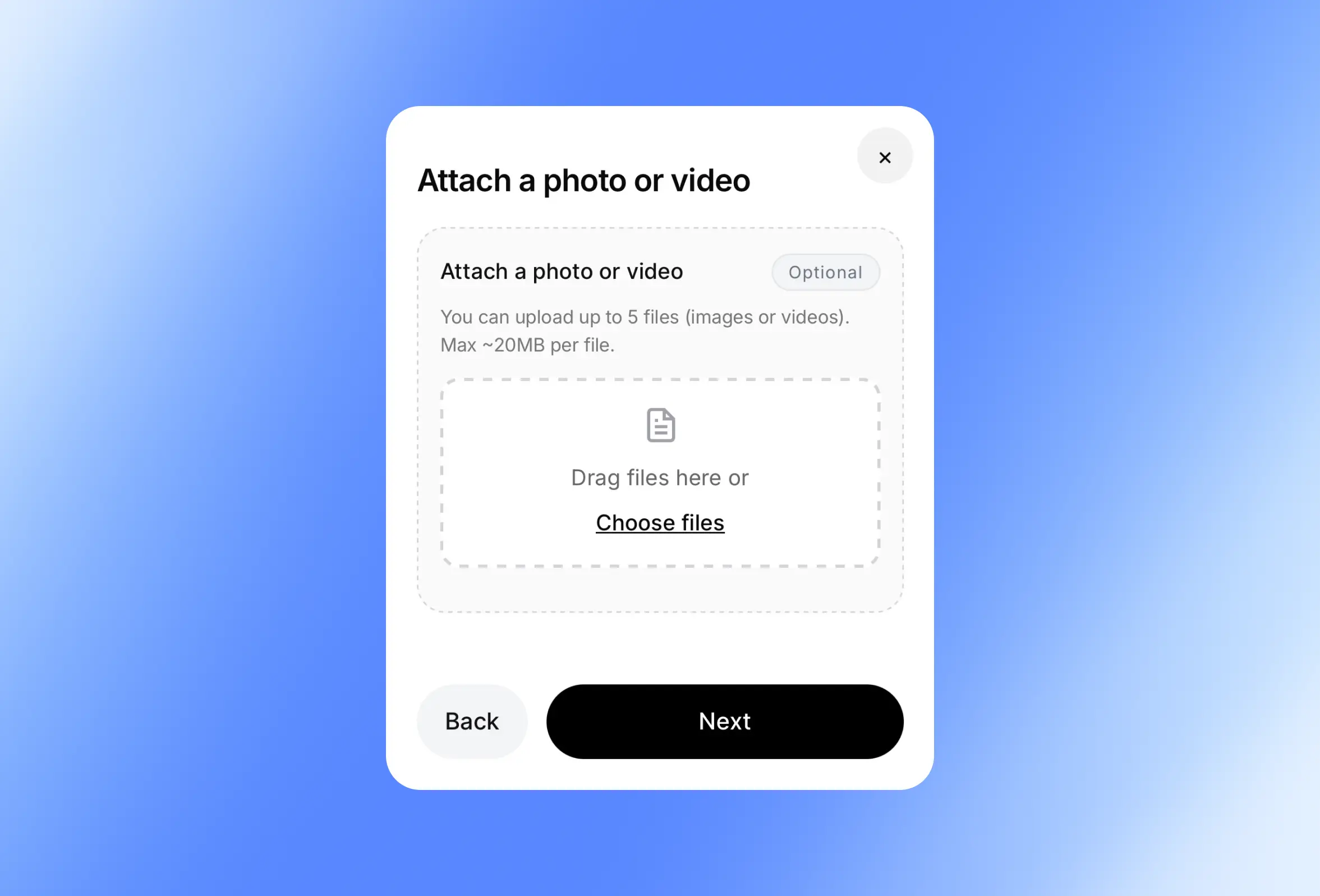
Available tools include email invitations and invitation tracking, helping you follow invitation status and history. Customers can also attach optional photos and videos, as explained in the introduction to Welo Badge reviews with photos and videos.
Eligible published reviews can appear on your Welo Page and through available review widgets. Review collection is optional after certification, not an application requirement, and invitations and submissions follow the account limits, verification, fraud checks, and moderation rules that apply.
As feedback arrives, make time to read it and respond constructively. The guide to handling negative reviews offers practical advice for addressing customer concerns.
After Activation: Keep Your Welo Badge Information Current
Keep your business details, support links, and customer policies accurate as your company changes. Respond to further verification requests and check the dashboard for outstanding actions, especially when your business model, website, or billing arrangements change.
Certification includes ongoing monitoring, and its status can change if the business no longer meets the standard. It is an evidence-based trust assessment, not a guarantee of product quality, delivery, legal compliance, security, or business results.
If Analytics is available to your account, use it to review company activity over the relevant date range. The Welo Badge documentation also provides guidance on managing your page, reviews, widgets, and account tools.
Start Your Welo Badge Application
A clear application begins with accurate business information and a website that explains your offer, policies, and support options. Prepare those essentials, then follow the requests shown for your business rather than trying to anticipate every possible verification document.
Create your Welo Badge account to get started. If you have already registered, sign in to continue your Welo Badge application and complete the next action in your dashboard.
FAQ
Which businesses can apply for Welo Badge?
Registered ecommerce, SaaS, subscription, digital-product, and consumer-service businesses with a verifiable identity and functioning online presence can apply. Eligibility depends on the business's activities and whether it meets the Welo Trust Standard.
Which documents do I need for my Welo Badge application?
The documents requested depend on your business and the information needed for verification. Follow your application and dashboard instructions, using Documents to upload requested private files.
Does application approval mean my business has Welo Badge certification?
No. Initial approval allows your business to proceed, while certification requires successful business verification and final approval. Complete the required activation steps before treating the service as active.
What costs apply to Welo Badge certification?
After approval, Welo Badge presents the applicable plan. Review that offer for your pricing, terms, and any required setup fee or subscription before payment.
How long does a Welo Badge application review take?
Check your application updates for progress and outstanding requests, and contact Welo Badge support for guidance specific to your application. Responding fully to requests helps the team continue its review.
What does my business receive after Welo Badge certification is activated?
Active certification lets your business present its badge and public Welo Page. Available account tools support page management, website widgets, and Welo Verified Reviews, with access depending on your plan, permissions, and completed requirements.
What can customers see on my Welo Page after Welo Badge activation?
Customers can consult published company information, public trust details, approved Welo Trust Score information, and eligible published reviews, along with any public documents, support links, and company updates available on the page.
How does the Welo Trust Score differ from customer review ratings?
The Welo Trust Score is a score out of 100 based on evaluated trust topics under the Welo Trust Standard. Customer star ratings reflect submitted customer feedback, so the two measures serve different purposes.
Is collecting Welo Verified Reviews required to apply for Welo Badge?
No. Review collection is an optional activity after certification, using the review tools available in your account.
How do I install Welo Badge on my website?
Open Widget in the client portal, choose and preview a widget, and select Copy code. Paste the complete generated snippet into the appropriate website area, publish your changes, and test the live result on desktop and mobile.